The familiar problem
The workbook owns too much
Copied exports, hidden mappings, stale tabs and definitions that exist only inside one file make each reporting cycle harder to inspect.
FP&A reporting in Excel
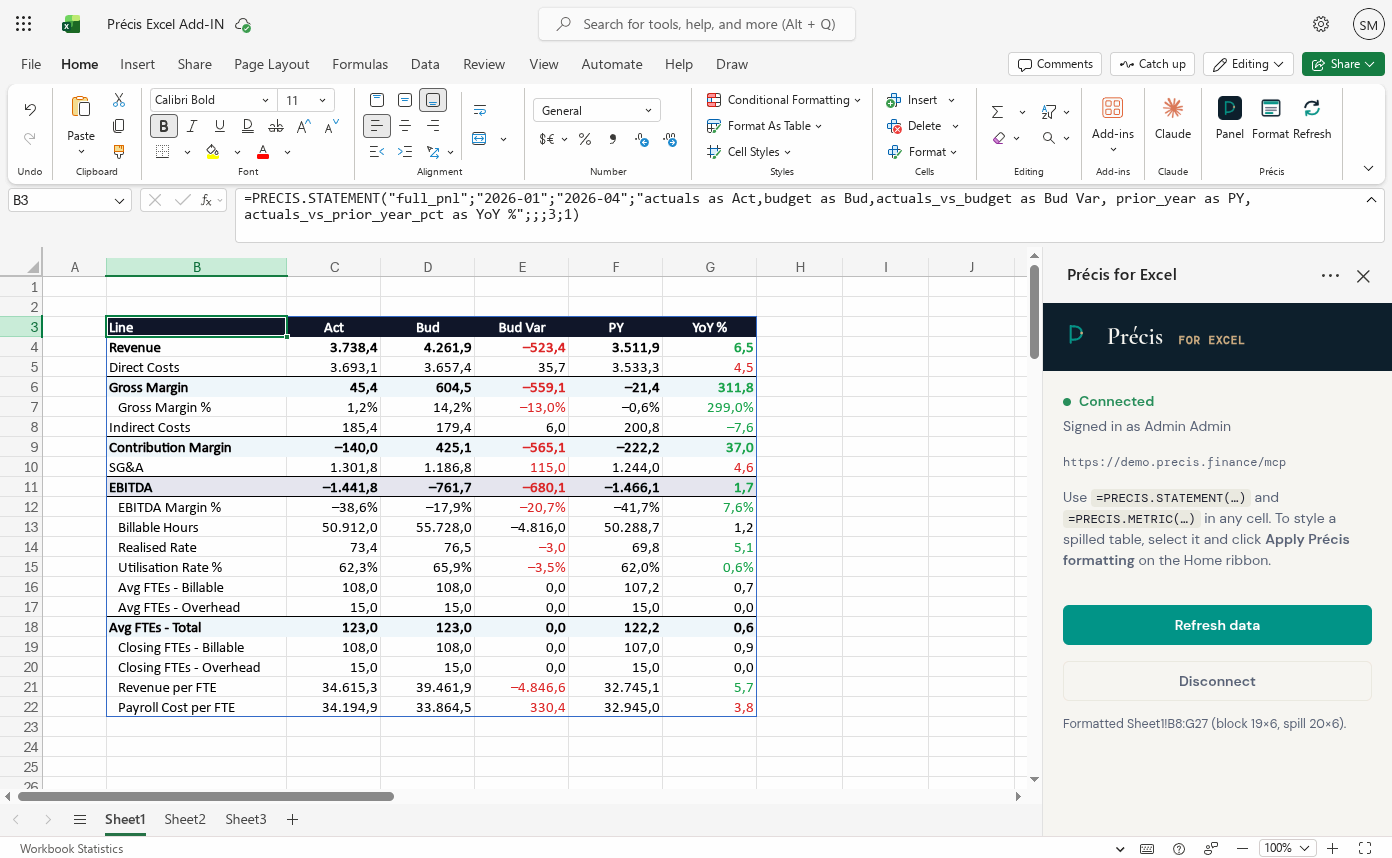
The Précis Excel add-in brings live, read-only financial statements, metrics, scenarios and hierarchy members into the grid. The workbook remains the place finance inspects and presents the work; retrieval and financial definitions no longer need to be rebuilt in every file.
A first-class finance surface
The familiar problem
Copied exports, hidden mappings, stale tabs and definitions that exist only inside one file make each reporting cycle harder to inspect.
The governed route
Finance keeps the flexible grid while statements, metrics, scenarios and member lists arrive through one governed read layer.
Live worksheet functions
Précis functions return finance structures at the requested period, scenario and grain. A ribbon action applies Précis formatting to the result, and Refresh rebuilds live blocks and member lists.
Review the function signatures →PRECIS.STATEMENTReturn a governed financial statement as a dynamic spill.PRECIS.METRICRetrieve one or more approved metrics at the requested grain.PRECIS.SCENARIOSDiscover the actual, plan and forecast scenarios available to the user.PRECIS.KPISShow the governed finance vocabulary available to the workbook.PRECIS.HIERARCHYReturn approved members and provision live lists for workbook controls.One definition across interfaces
The Excel functions call the same read-only finance tools used by other Précis clients. Statements, metrics, scenarios and hierarchies resolve through the same catalogue definitions, semantic views and permitted scope.
The add-in does not calculate a financial answer in JavaScript or ask a language model to generate the number. It renders the structured result returned by the governed engine.
How to prepare management reporting without replacing Excel →One instance, one identity model
The server hosts the add-in bundle and announces its connection and OIDC configuration. Tokens remain in the Office shared-runtime session; they are not written to the workbook or disk.
01
Add the Office manifest for the customer instance.
02
Authenticate through the Office dialog and configured identity provider.
03
Call statements, metrics or member lists within the user's scope.
04
Rebuild live blocks deliberately when the underlying data changes.
The add-in works in supported desktop Excel and Excel on the web. Installation uses the Office manifest for the customer instance.
A deliberate boundary
Questions finance teams ask
The current add-in provides read-only functions for governed statements, metrics, scenarios, KPIs and hierarchy members. Statement and metric functions return structured results; hierarchy functions can also provide live member lists for workbook controls.
Yes. The current add-in is designed for supported desktop Excel clients and Excel on the web. The customer deployment serves the add-in bundle and its connection configuration.
A Refresh action rebuilds the Précis formula blocks and member lists in the workbook. The period, scenario and filters remain explicit in the request rather than being inferred from a pasted extract.
Users sign in through the Office dialog using the identity provider configured for their Précis instance. Tokens remain in the Office shared-runtime session and are not written to the workbook or disk.
No. The hosted worksheet functions are read-only. They cannot create a scenario, change a plan or bypass the platform's permission gates. Any future write-back workflow would be a separate, explicitly controlled process.
The add-in is installed using an Office manifest for the customer instance. The manifest points Excel to the add-in bundle and connection configuration served by that deployment.
No. The workbook can remain the place finance inspects and presents recurring work. Précis changes the route by which governed figures and approved finance structures arrive in it.
Bring the recurring statement, comparison or member list. We will show how the governed read route fits around the workbook.